
How to import staff data into agency software with CSV field mapping
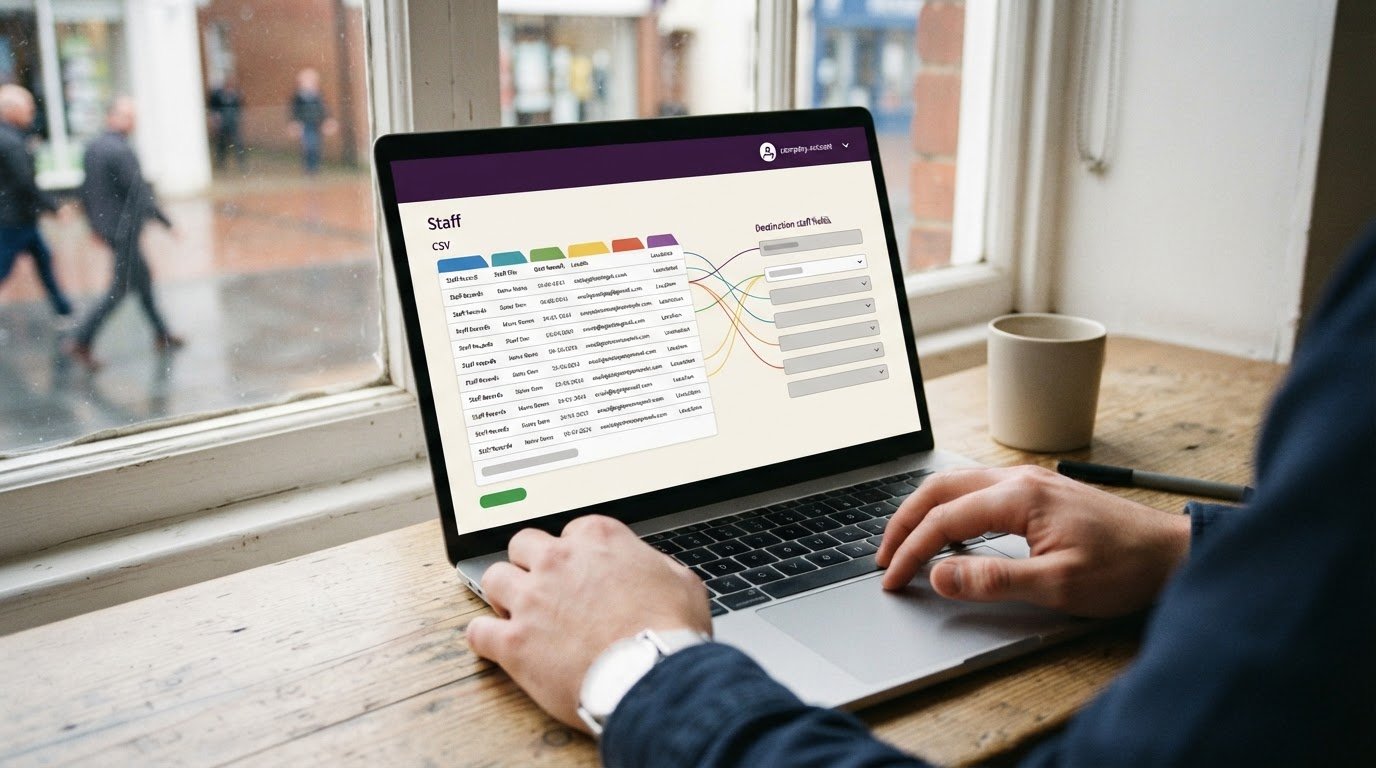
A CSV import depends on accurate field mapping: match each spreadsheet column to the corresponding import field, choose the right company, select the file and import the records.
Different labels for the same staff detail can make mapping tricky. Identify the destination field before uploading.
This guide explains how to find import fields, prepare a CSV and organise agency records for import.
Key Takeaways
- Use an existing staff-data export to identify column headings and decide which records need updating.
- Match each spreadsheet column to the corresponding import field, and pay close attention to required information.
- Prepare and save the file as a CSV, then check its layout before starting the import.
- Keep candidate, client, contact and vacancy records organised, and consider guided setup when you need help preparing staff data for agency software.
How do you identify and prepare staff data for a CSV import?
To import staff data into agency software, match your existing export headings to the destination’s supported fields. Then clean and review each record before uploading the CSV.
Identify import column headings
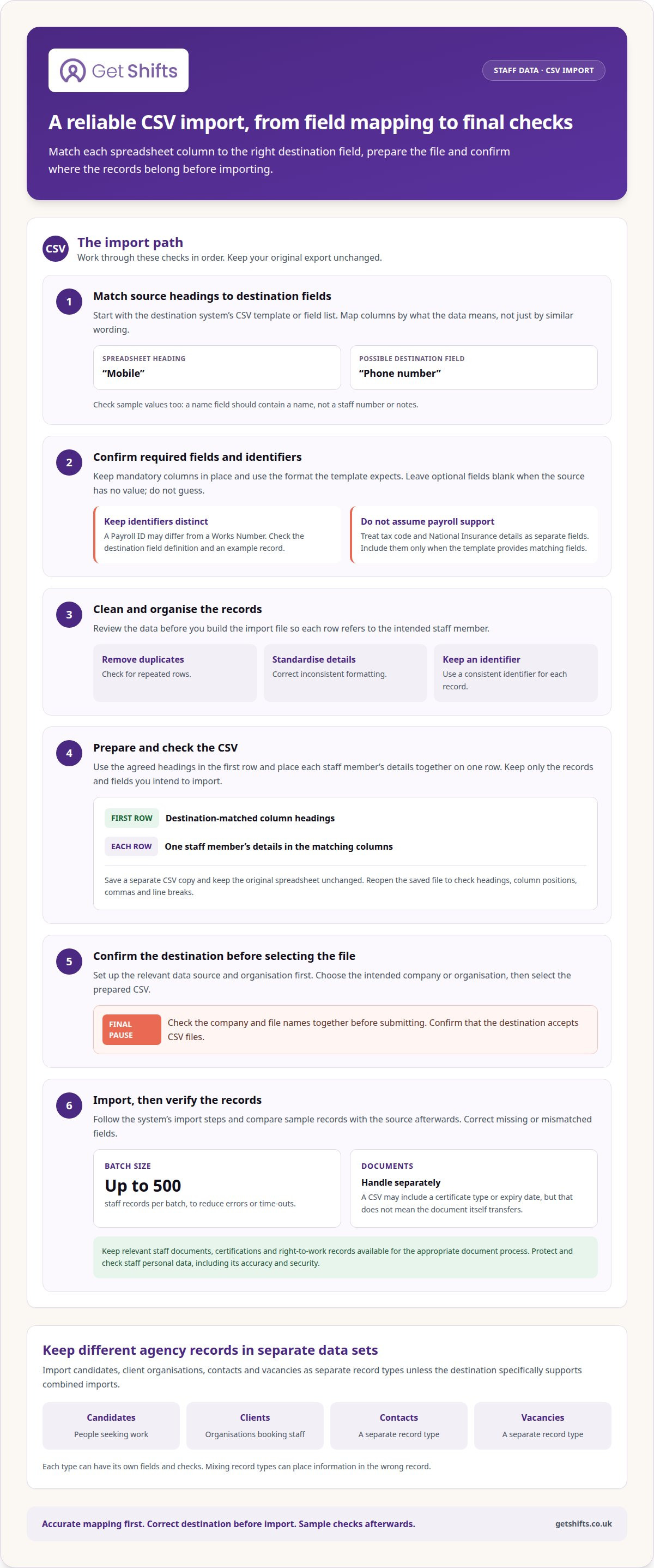
Open an existing staff-data export and check its first row for the column headings. Compare these with the destination system’s import template or field list rather than assuming the labels match. For example, “mobile” and “phone number” may describe similar information but map to different fields. Keep the original export unchanged, then note which source heading corresponds to each destination field.
Check employee fields supported by CSV
Check the import template to see which staff fields the system accepts and which can be updated. Examples might include a worker’s name, email address or phone number, but the receiving system determines which fields are supported. Keep identifiers consistent so each row refers to the intended person. Don’t add payroll or tax columns unless the template includes them.
- Prepare records. Remove duplicate rows, correct inconsistent formatting and check that each record has a consistent identifier. For a move from another agency system, map its headings to the new template before transferring information.
- Import the CSV. Before you import staff data into agency software, choose the intended company or organisation and select the prepared CSV. Follow the system’s import steps. Process files in batches of no more than 500 employees to reduce errors or time-outs.
- Handle documents separately. A CSV may contain a certificate type or expiry date, but don’t assume it transfers the document itself. Keep staff documents, certifications and right-to-work records available for the relevant document process.
- Protect and verify records. UK GDPR applies to staff personal data. Follow its data-protection principles, including accuracy and security, and consult current guidance from the Information Commissioner’s Office. After import, compare sample records with the source and correct missing or mismatched fields.
How do you map CSV fields to the right data?
Before importing, map every spreadsheet heading to its matching destination field. A CSV template shows the expected column names and may identify mandatory fields.
- Start with the destination system’s CSV template. Use its headings as the reference for your mapping, not assumptions based on familiar spreadsheet labels. For an advanced data import, match one source column to one destination field, then leave unrelated columns out.
- Map fields by meaning, not by similar wording. For example, a spreadsheet heading called “mobile” may match “phone number” if both hold the same detail. Check sample values too: names should contain names, not staff numbers or notes.
- Use the template to identify mandatory fields. Keep required columns in place and provide a value in the format the template expects. If a field is optional and your source has no value, don’t fill it with guessed information or shift another column into its position.
- Treat tax code and National Insurance details as separate fields. Map them only when the destination template explicitly provides matching fields. Don’t assume an import supports payroll data, or that similarly named fields serve the same purpose.
- Keep identifiers distinct. A Payroll ID may be different from a Works Number, so don’t map one into the other based on the label alone. Use the destination field definition and an example record to confirm what each identifier represents.
Before saving the CSV, compare its headings and a sample row with the template. Check that commas, dates and blank cells haven’t shifted values into neighbouring fields. If the template provides real-time validation, use it to catch formatting issues before exporting.
How do you select and prepare a CSV file for import?
Choose the right company or organisation before selecting a file. To import staff data into agency software, prepare a compatible CSV and confirm its destination first. This helps avoid sending records to the wrong place or having columns interpreted incorrectly.
- Set up the destination. Create the relevant data source and organisation before preparing the import file. These settings establish where records belong. If your agency separates staff by branch or client group, decide which destination applies before selecting a company in the import process.
- Build the CSV from your mapped data. Use the agreed headings in the first row, then place each staff member’s details under the matching column. Keep one person’s information together on one row. Remove unrelated tabs and columns so the import file contains only the records and fields you intend to use.
- Save a separate CSV copy. Keep the original spreadsheet unchanged, then save the prepared data as a CSV file. Give it a clear name, such as “care-team-staff-import”, and save it somewhere accessible during upload. The completed import file is saved to a location you choose.
- Check format compatibility. Confirm that the destination accepts CSV files; don’t assume an Excel workbook or XML file is suitable instead. Open the saved file and check that headings remain in the first row, values sit beneath the right columns, and commas or line breaks haven’t split a record.
- Select the company and file. Before you import staff data into agency software, choose the intended company or organisation, then select the prepared CSV from its saved location. Check the company and file names together before submitting. This final pause can catch a wrong destination or an outdated file.
Can you import candidates, clients, contacts and vacancies from CSV?
CSV files can contain records for different agency functions, but the destination system must support each record type. Treat candidates, clients, contacts and vacancies as separate data sets, each with its own fields and checks.
- Separate records by type. Create distinct files for candidates, client organisations, contacts and vacancies unless the destination specifically supports combined imports. A candidate row describes a person seeking work; a client row describes an organisation booking staff. Mixing them can place information in the wrong record type.
- Prepare candidate details. Keep each candidate’s information together, such as their name, contact details and agency reference where available. Use a consistent identifier to help distinguish people with similar names. Don’t assume a CSV import will automatically identify duplicates or link related records.
- Distinguish clients from contacts. A care home is a client organisation; its rota co-ordinator is a contact. Keep organisation details in the client file and the person’s details in the contact file. Include a matching organisation reference only if the destination’s template supports it.
- Handle vacancies as their own records. Use separate columns for details such as role, location and shift information where the destination accepts them. Keep each vacancy on its own row, and avoid combining multiple roles or shifts in one cell. This makes later review clearer.
Before importing a category, confirm that the destination accepts that record type and follow its template. If the system provides a safe test process, try a small, representative file first. Then compare the imported records with the source, checking organisation links, contact details and vacancy information. A successful staff import does not mean other record types are supported.
When might Get Shifts help with staff data imports?
Get Shifts provides staffing agency management software, including Staff Data Import & Guided Setup. This can help your agency move staff records from spreadsheets or another system into the platform. It offers a practical next step when organising staff information as part of that transition. Get Shifts provides software, not temporary staff or candidate placement.
Guided setup can help when existing records have inconsistent headings, duplicate entries or need organising before use. For example, staff details may be spread across separate spreadsheets for care, nursing or hospitality workers. Bringing your source files and a clear list of the records you need to move helps keep setup focused on your agency’s needs.
It can also help when you want to reduce repeated manual entry and manage agency administration in one software environment. Consider which staff information your team uses each day, such as worker identification and organised records. Keep staff data separate from candidate, client or vacancy records, because each record type serves a different purpose.
Before taking the next step, gather your current staff export and note any unclear fields, duplicate records or information that needs attention. You can then discuss how Staff Data Import & Guided Setup fits your move into staffing agency management software. Contact Get Shifts to discuss your staff data import.
Frequently Asked Questions
What staff data fields should be included in an agency software import?
Include the fields needed to identify each worker and support your agency’s processes. Depending on the destination template, these might include a staff reference, name, contact details and role. Add other information only if the system accepts it and your agency has a clear use for it. Avoid carrying unrelated personal details into the new file.
Which file formats do recruitment and staffing agency platforms support for data imports?
Supported formats depend on the platform and type of import. CSV is commonly used for tabular records, but don’t assume an agency platform also accepts Excel workbooks, XML or other formats. Check the import screen or template for accepted file types. If your source data is in another format, save or convert a copy without changing the original.
How should you clean and prepare staff data before importing it?
Start with a working copy, then remove blank rows and entries your agency no longer needs. Standardise details such as phone-number formats and role names, and look for missing identifiers or inconsistent spellings. Use one date format throughout. Review unusual values manually rather than replacing them automatically, since a change could make a valid record inaccurate.
How do you map staff data fields during an agency software import?
Match each source column to the destination field that represents the same information. For example, map “preferred name” only to a field intended for that value, not automatically to “legal name”. Check a few actual rows against the mapping before importing the full file. Leave unmatched columns out rather than forcing them into unrelated fields.
How can you avoid duplicate records and data errors during staff imports?
Use a consistent staff identifier to compare the import file with existing records, then review possible matches before uploading. Similar names alone may not identify the same person, especially when spelling varies. Keep the original file unchanged, import a checked copy and review a sample of the completed records afterwards. Correct errors in the source before trying the import again.
What UK GDPR rules apply when importing staff data into agency software
UK GDPR applies to staff personal data. Follow its data-protection principles, including accuracy and security, and consult current Information Commissioner’s Office guidance.